You can add your own markers (nodes) and freehand drawings to any map. Both save automatically per map, appear in your filters list, and can be shared. (Sign in with a free account to sync them across devices.)
Add a node (custom marker)
- Click Add Node in the map toolbar.
- Click the spot on the map where you want it.
- Give it a name, pick an icon and color, and add an optional description.
- Save — it appears on the map and as a filter in the sidebar.
Add a drawing
- Click Add Drawing to open the drawing toolbar.
- Pick a tool — Draw Line, Draw Rectangle, Draw Polygon, Draw Circle, or Add Text — and set the color, fill, and size.
- Draw on the map:
- Line / Polygon: click each point, then double-click (or click the last point again) to finish.
- Rectangle / Circle: click and drag.
- Text: click where you want it and type.
- Save — your drawing shows on the map and in your filters list.
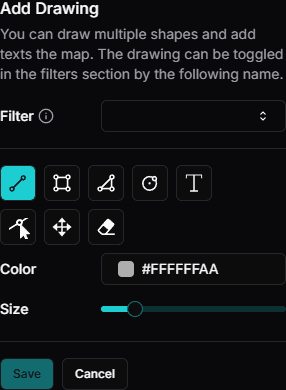 Drawing toolbar
Adjust a drawing (edit tools)
The drawing toolbar has three editing tools:
- Edit Mode — drag a point to move it, click a mid-segment dot to add a new point, and right-click a point to delete it. Circles show center and radius handles.
- Drag Mode — grab anywhere on a shape to move the whole thing.
- Remove Layer — click a shape to delete it.
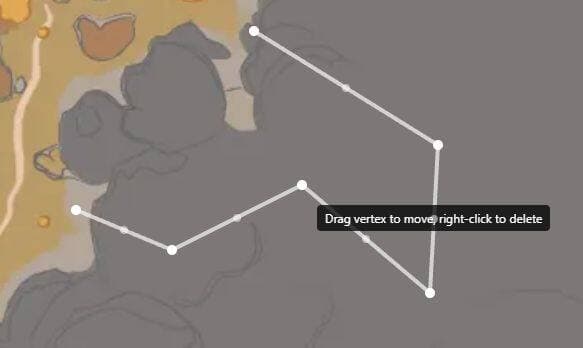 Edit mode handles
Fix something after saving
Made a mistake? You don't have to start over. Open the filters list in the sidebar, find your saved node or drawing, and use the menu (⋯) next to its name to rename, edit, or delete it.
Share your drawings
From that same menu (⋯) you can download a drawing. Share the file (and a screenshot) so others can import it.